Publish Web Server in Windows using SSL/TLS
2. Create VPN Account
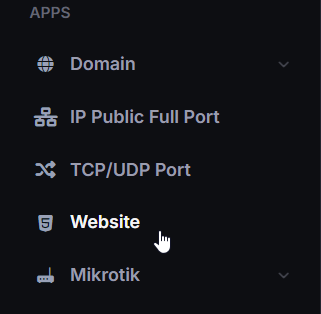
- Select the Website menu.
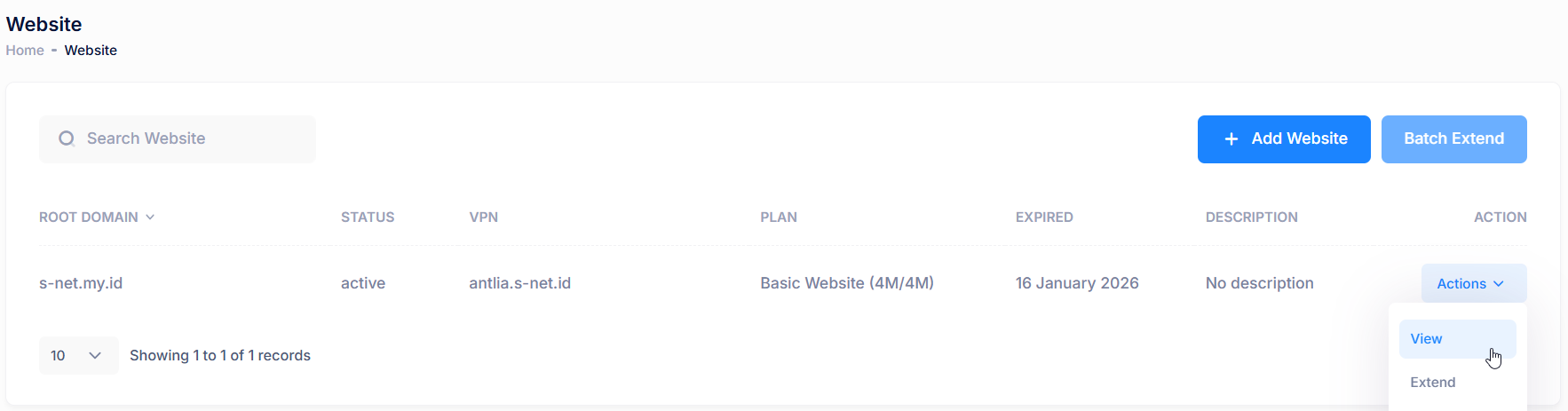
- In the Website list, click Action then click View.
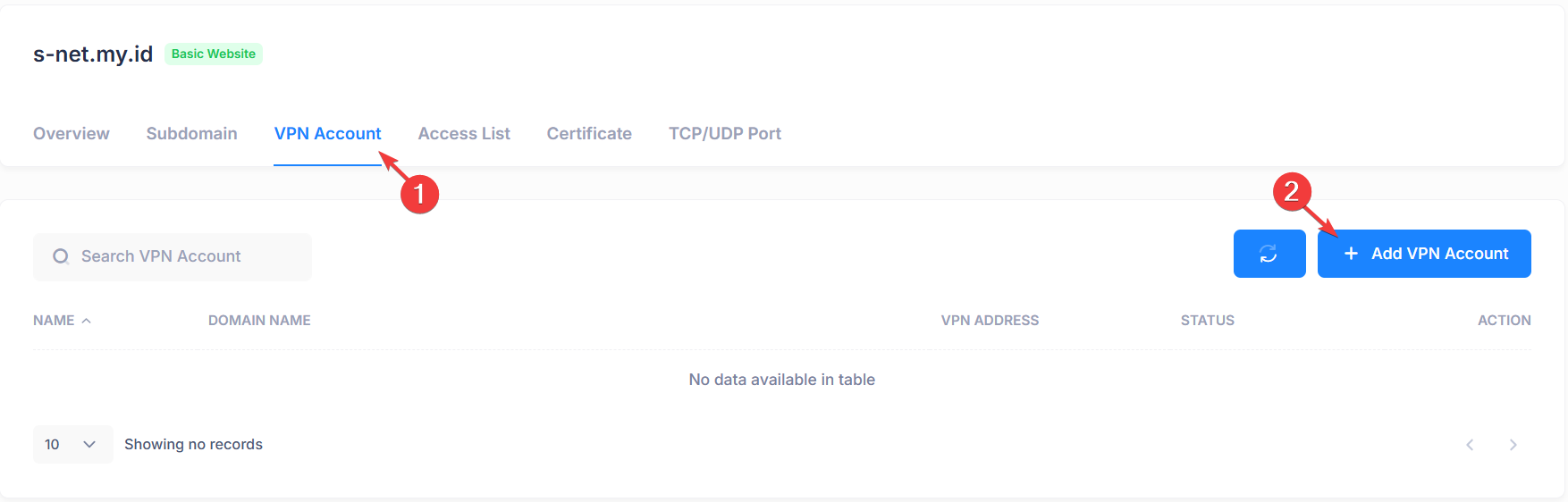
- Select VPN Account tab then click Add VPN Account to create new VPN Account.
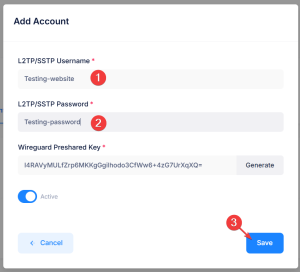
- Input username and password then click Save.
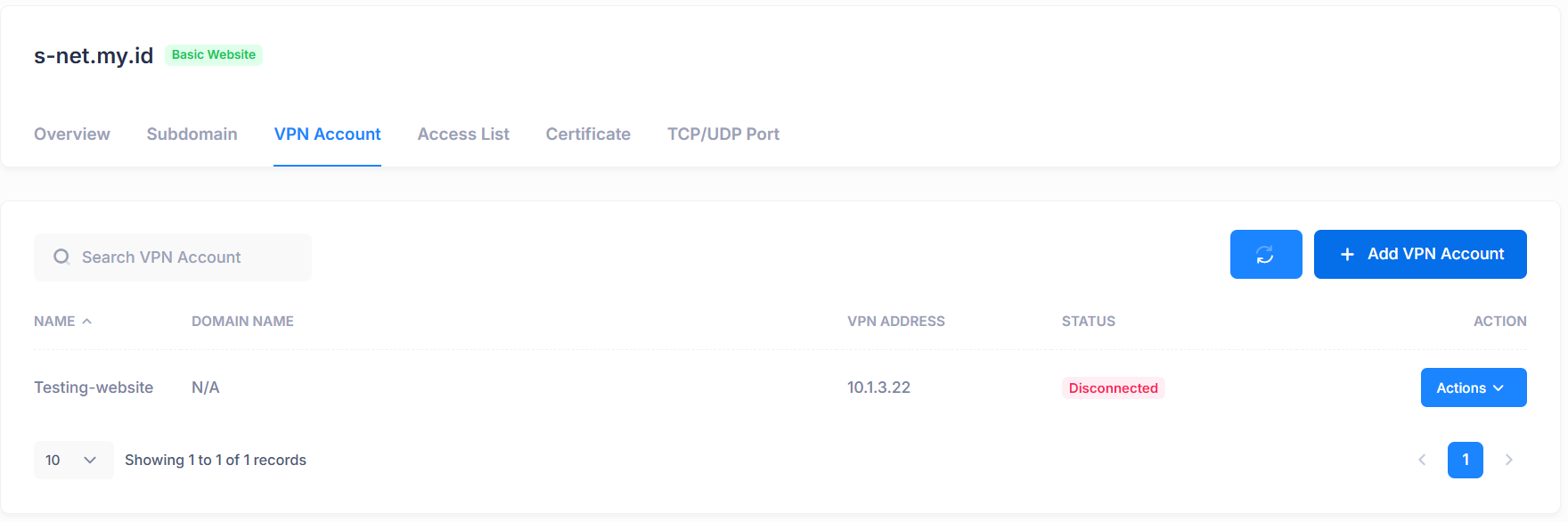
- VPN Account successfully created.
3. Add Root Domain or Subdomain
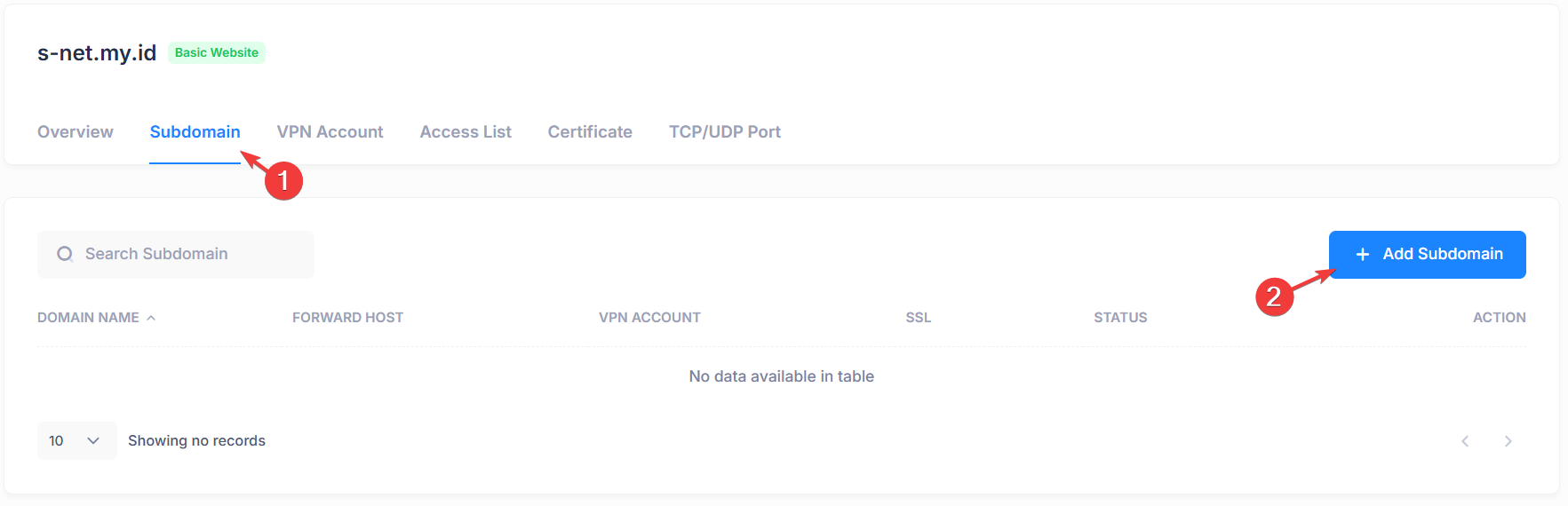
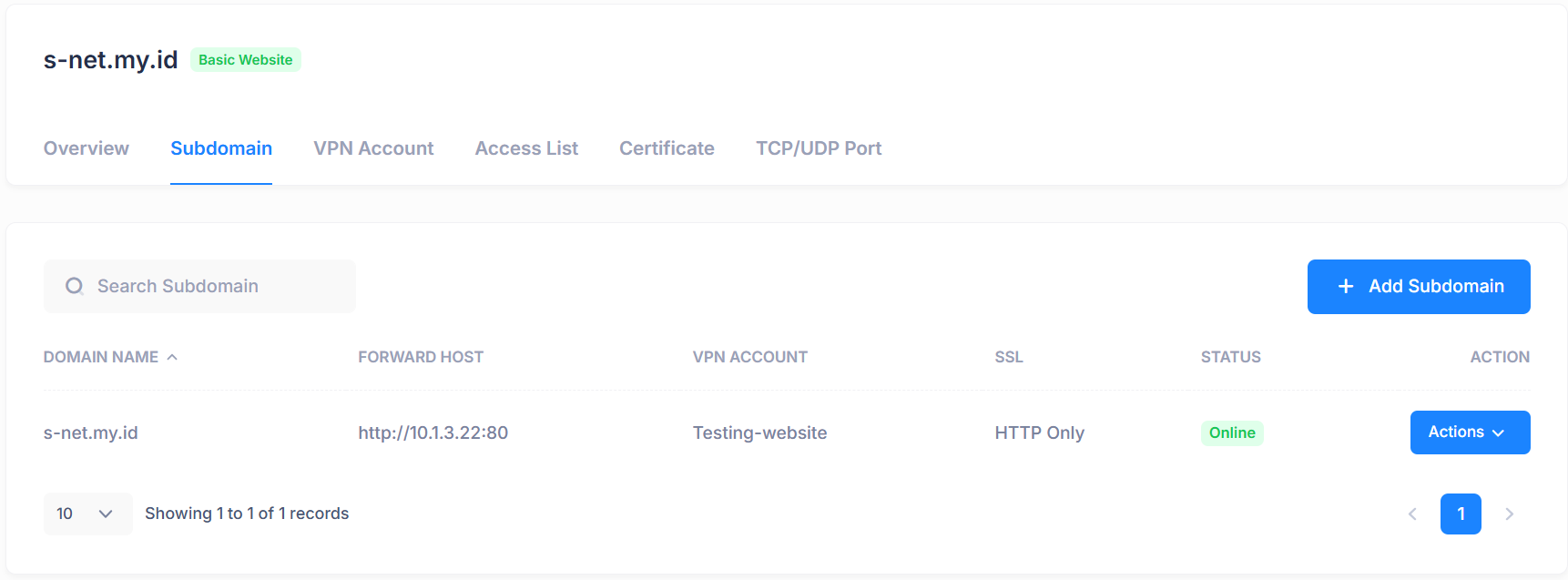
- Select the Subdomain tab, then click Add Subdomain to create new Subdomain.
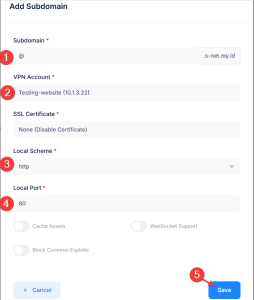
Add subdomain, example use @ for root domain then select VPN Account, local scheme and local port (example use 80 for default http port) then click Save.
- Root domain or subdomain successfully created.
4. Generate SSL Certificate
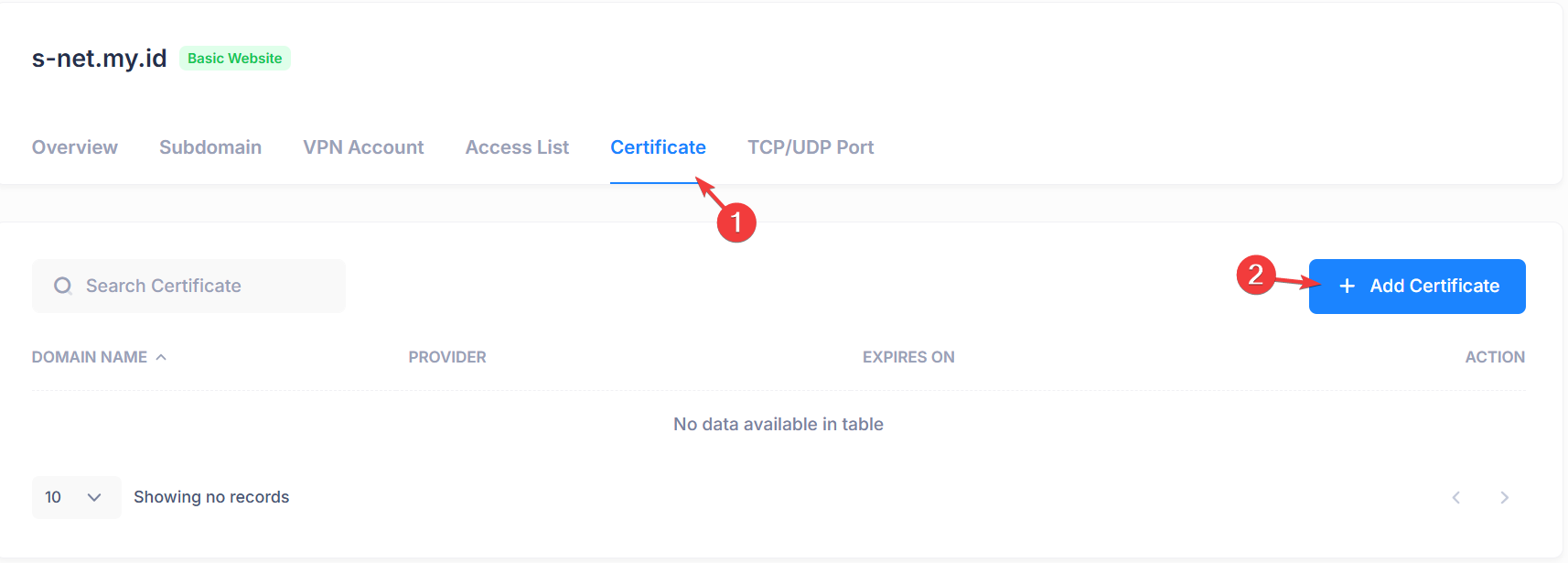
- In the Certificate tab, click Add Certificate to create a new certificate.
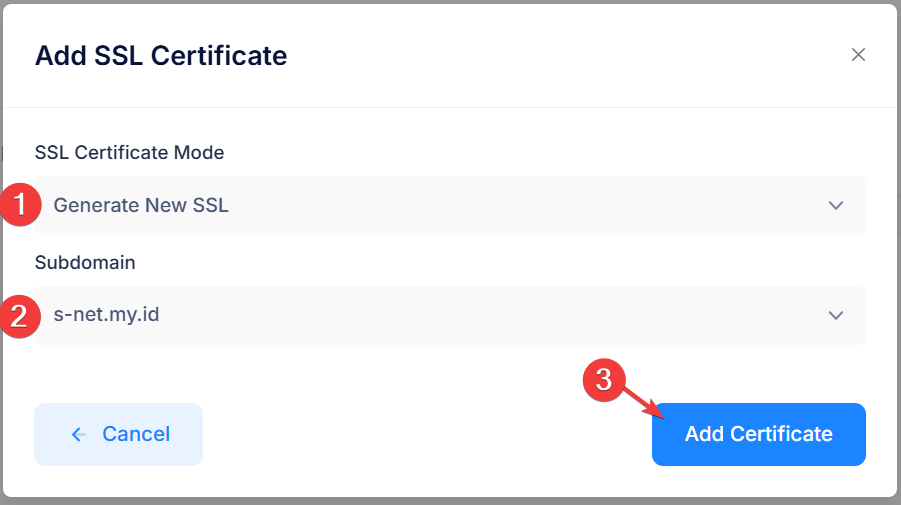
- Select SSL Certificate Mode to generate and choose the Subdomain for which the certificate will be created. Then click Add Certificate.
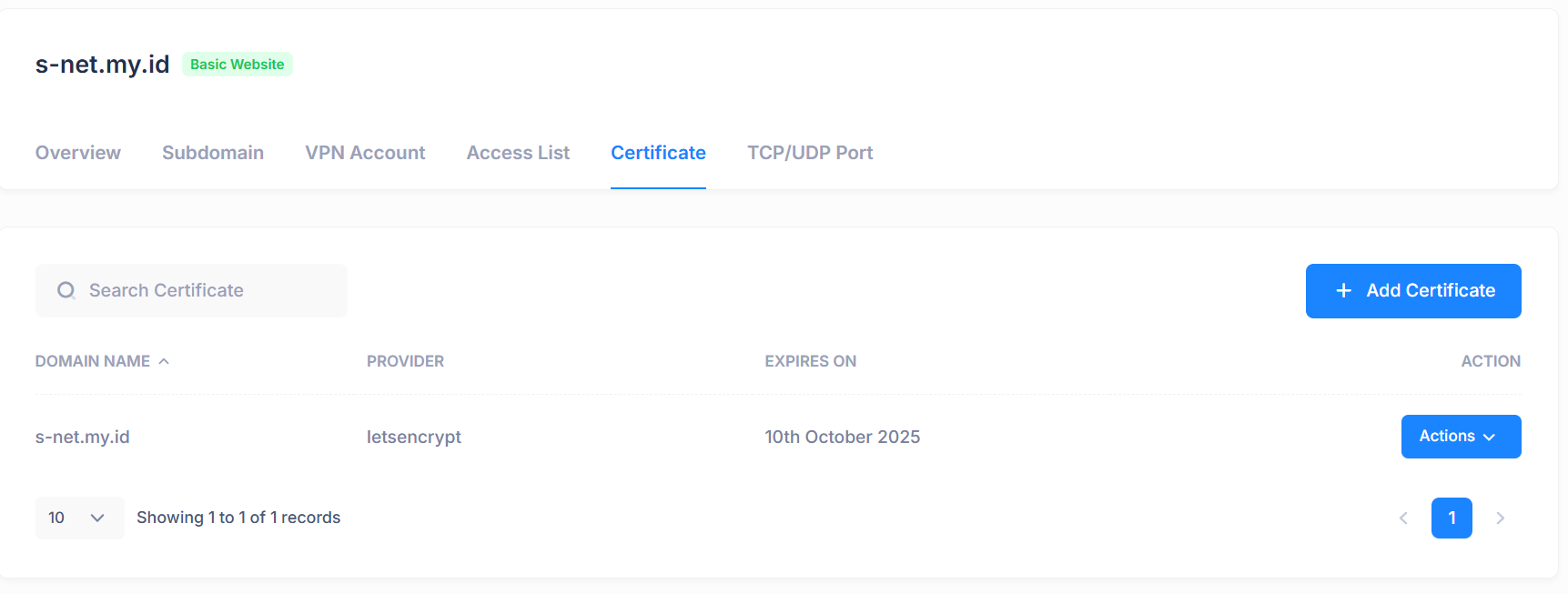
*Sometimes propagation takes time for the certificate generation to succeed - New SSL/TLS Certificate successfully created.
5. Connecting VPN Account
Via Windows Wireguard
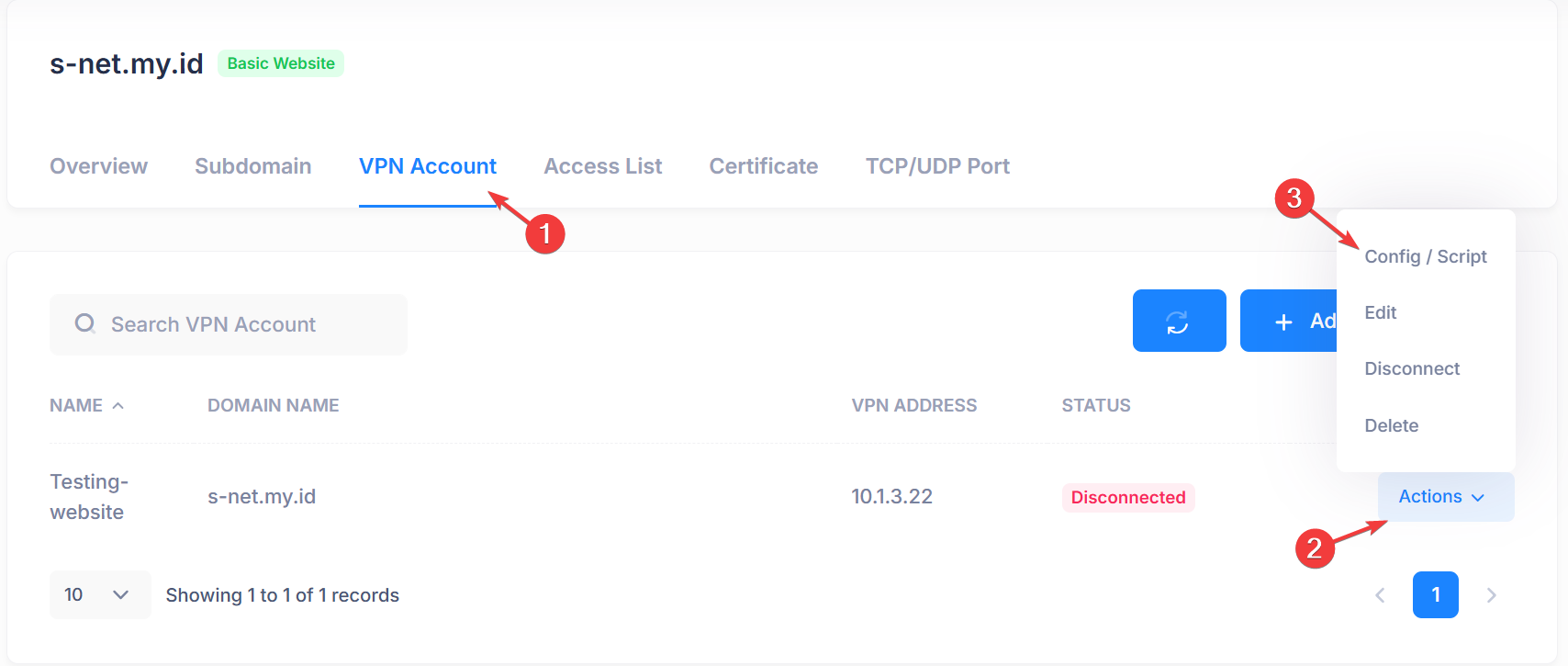
- In the VPN Accounts tab, click Action and then click Config/Script.
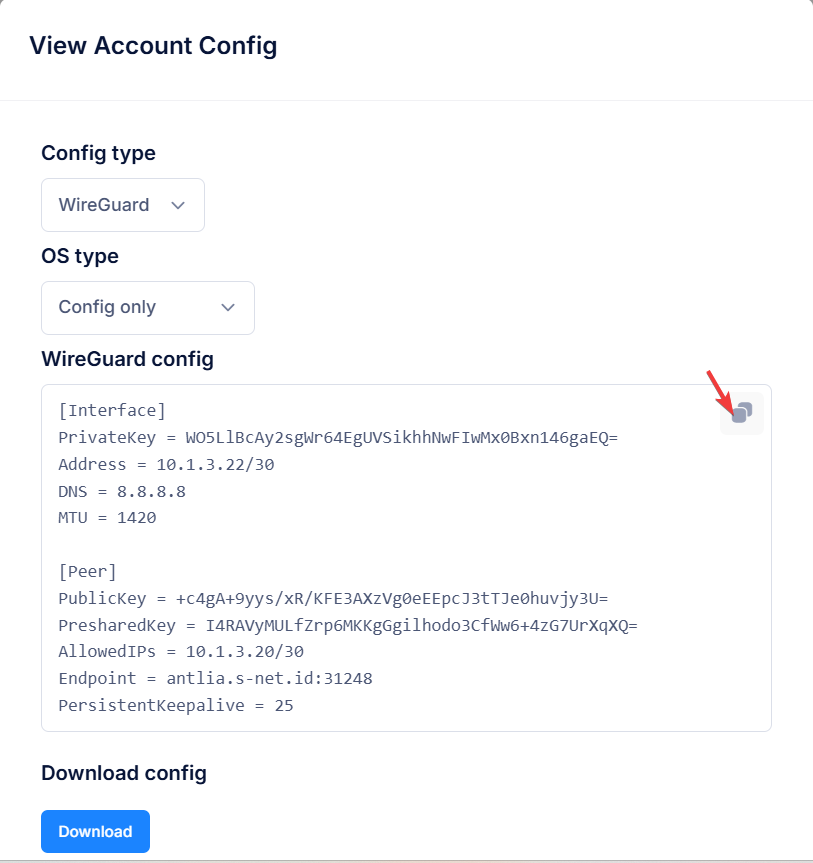
- Select Wireguard config type then click copy icon to copy config text.
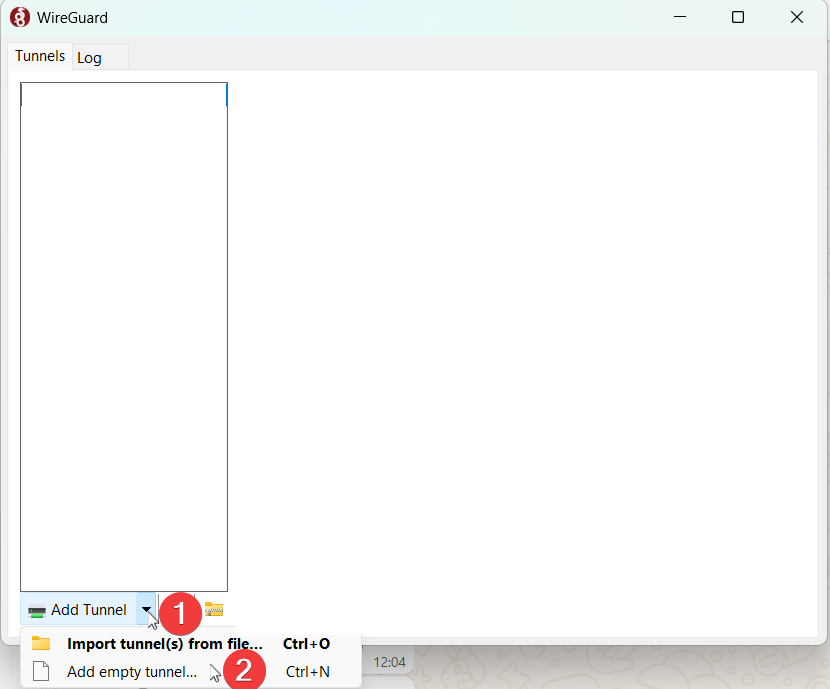
- Open wireguard application, click Add Tunnel then click Add empty tunnel
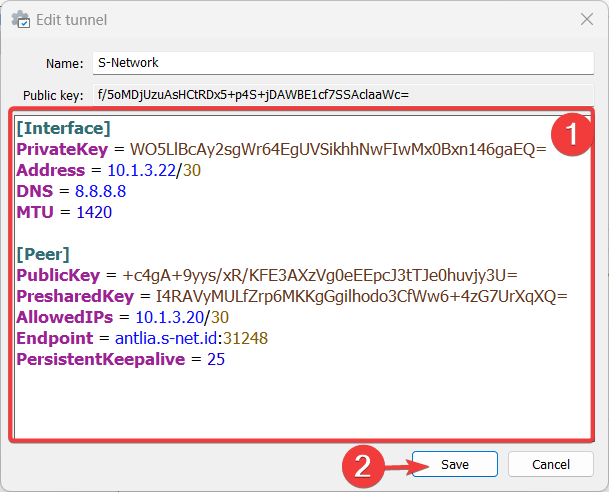
- Paste name and config here then click Save.
- Click Activate to connect to the vpn
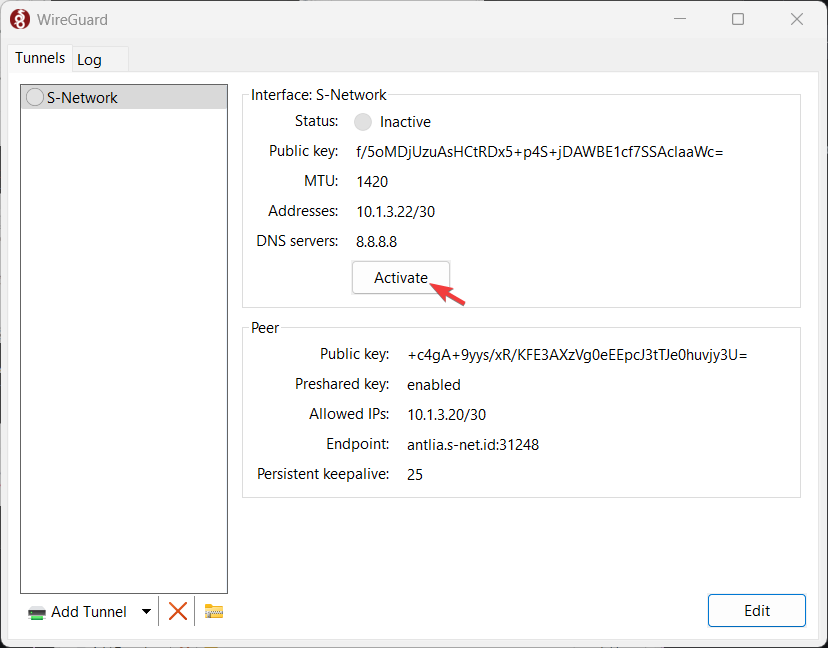
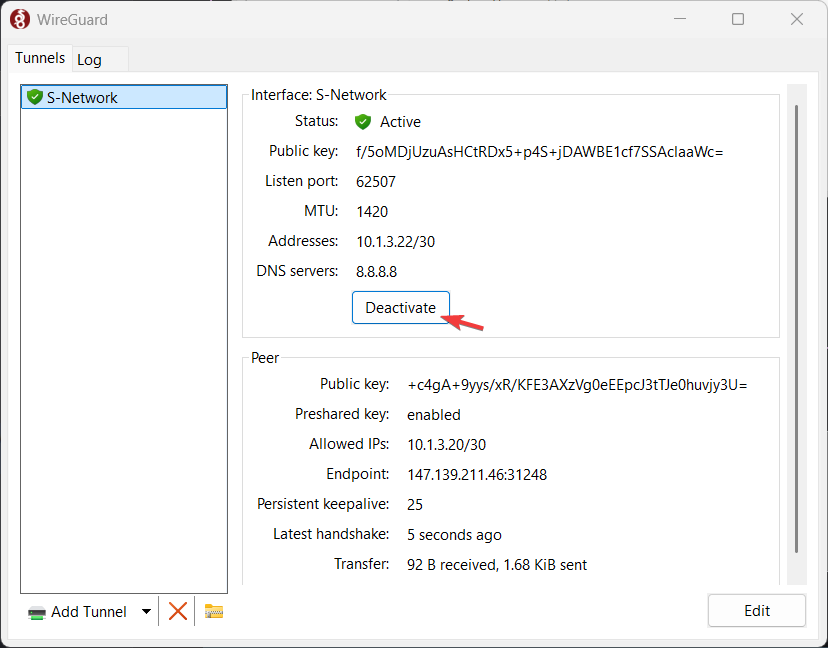
- Wireguard VPN is successfully connected if the latest handshake is present.
Via Windows VPN
- In the VPN Accounts tab, click Action and then click Config/Script.
- Select PPP config type then click copy icon to copy config text.
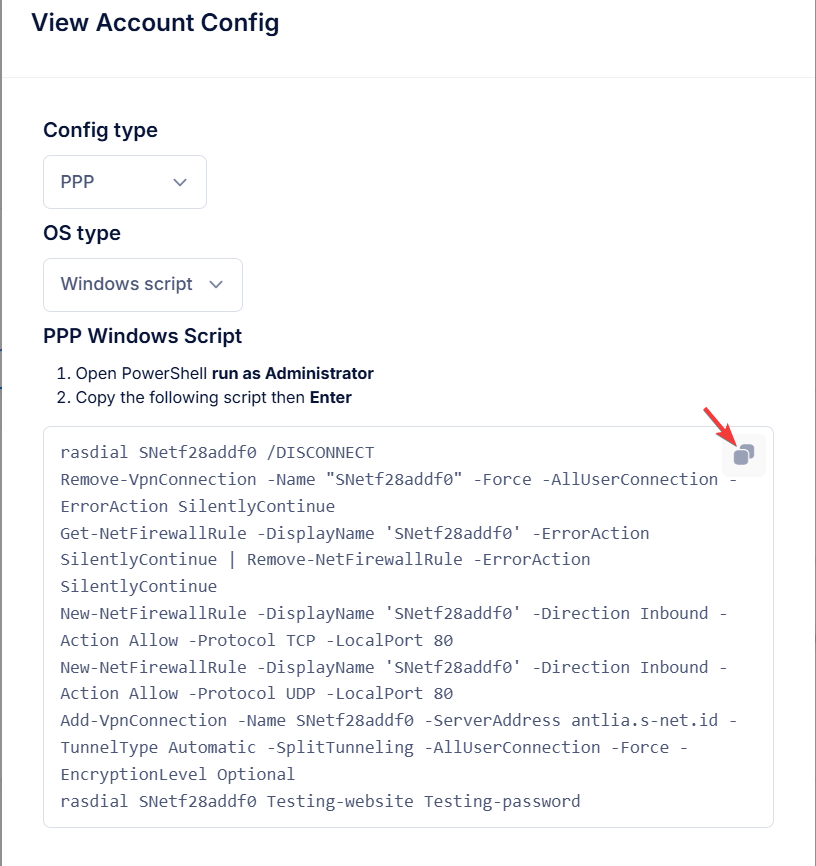
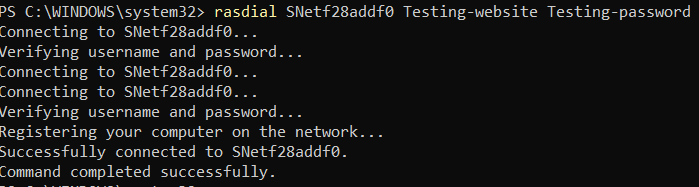
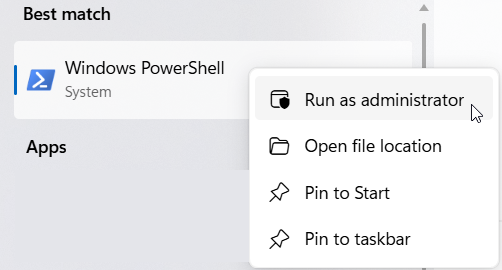
- Open Windows Powershell run as Administrator.
- Right-click to paste the script into PowerShell, wait until the script is fully pasted then hit Enter.
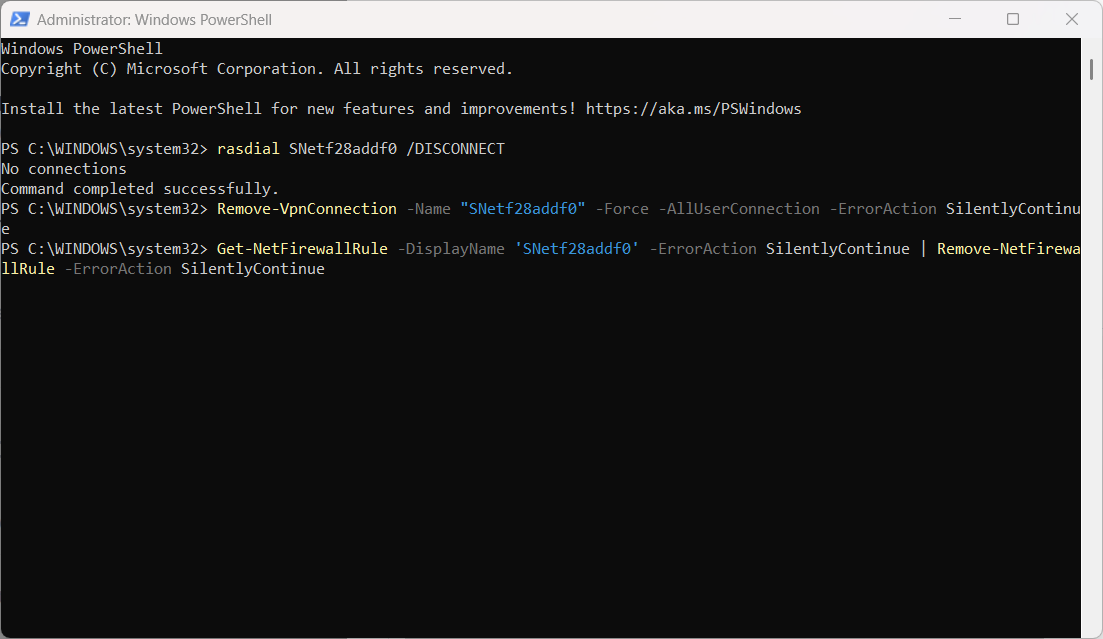
- VPN connected successfully.