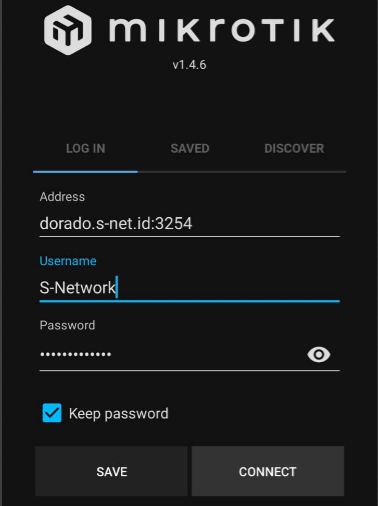
Via Mikrotik Winbox Android
1. Connecting VPN Account
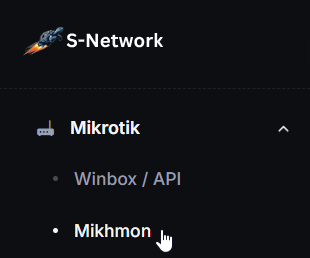
- In Left side menu, select Mikrotik -> Mikhmon.
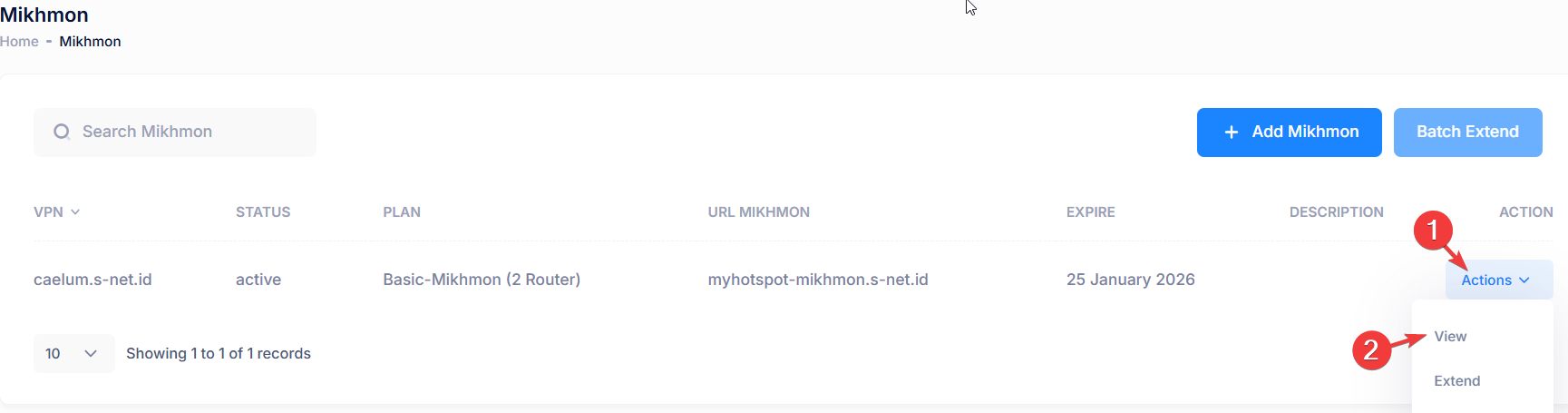
- In the list, click Action then click View.
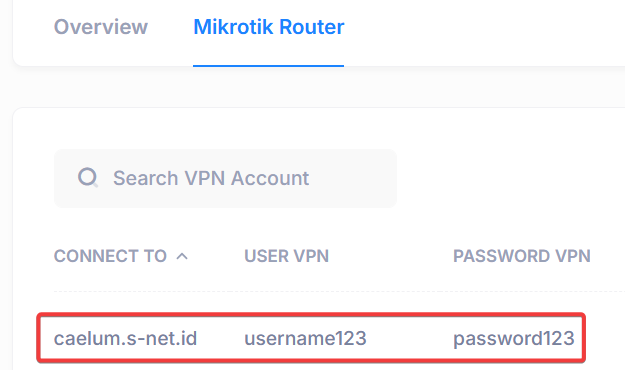
- Select Mikrotik Router tab. Save Connect To, user and password VPN.
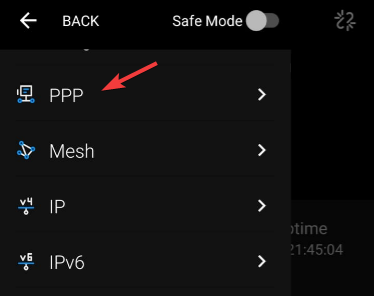
- Open Mikrotik Winbox in Android and connect to your Mikrotik. Then select PPP.
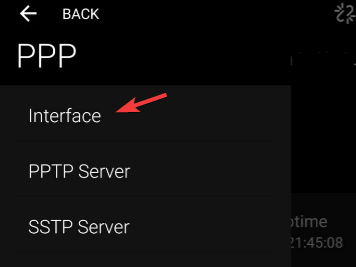
- Select Interface
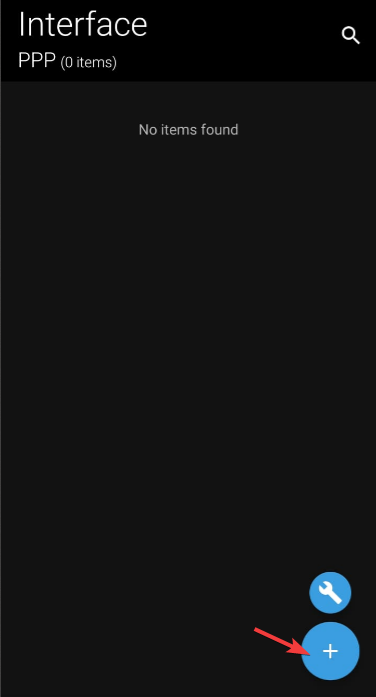
- Select ‘+‘ icon to add new Interface
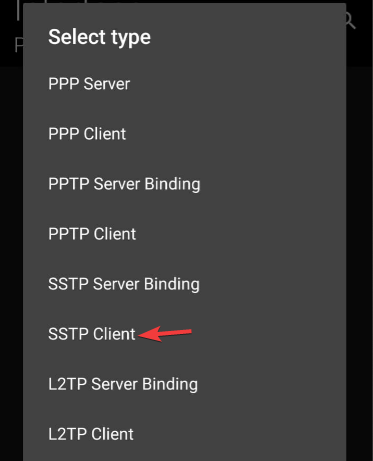
- Select SSTP Client
- Input the interface Name
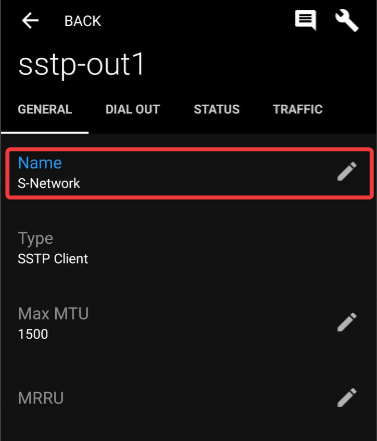
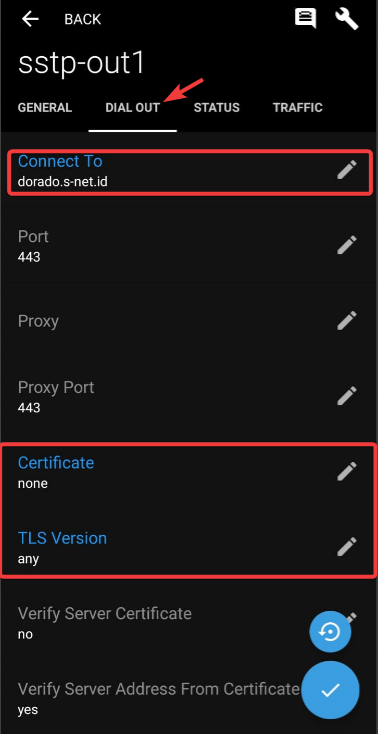
- Select Dial Out tab. Enter VPN Name to Connect To field (example dorado.s-net.id). Select Certificate as none, and TLS Version as any
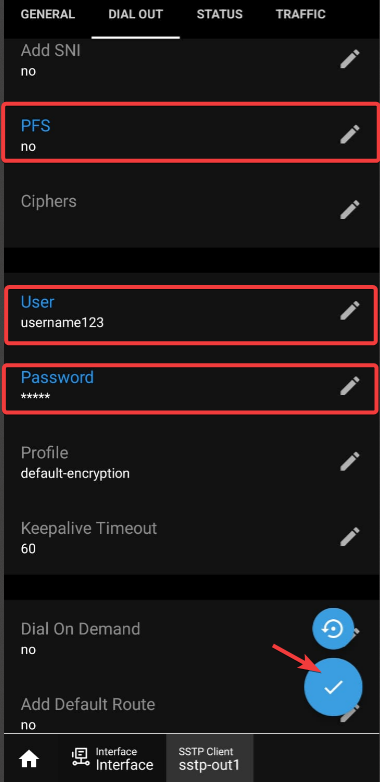
- Select PFS as no, then enter the user and password as listed on the website. And then select checklist icon to proceed.
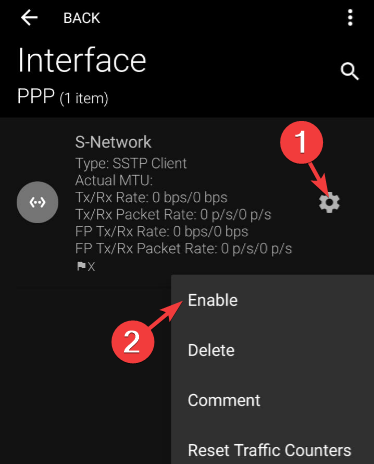
- Last step is enable interface by click gear icon then click Enable.
2. Config and Connect Mikhmon Online
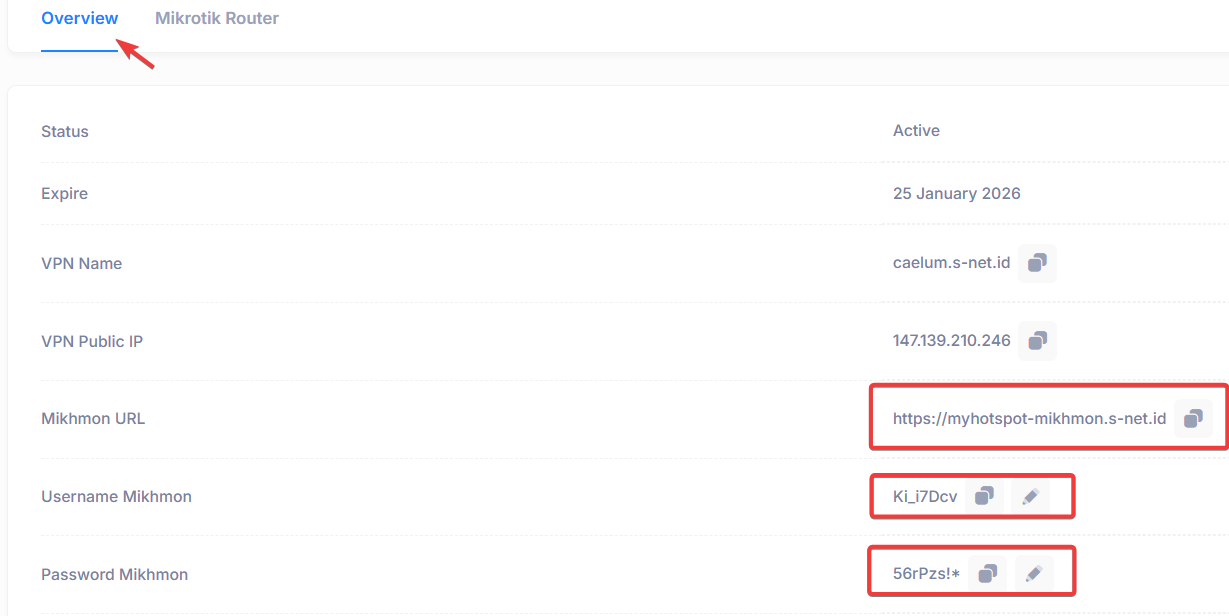
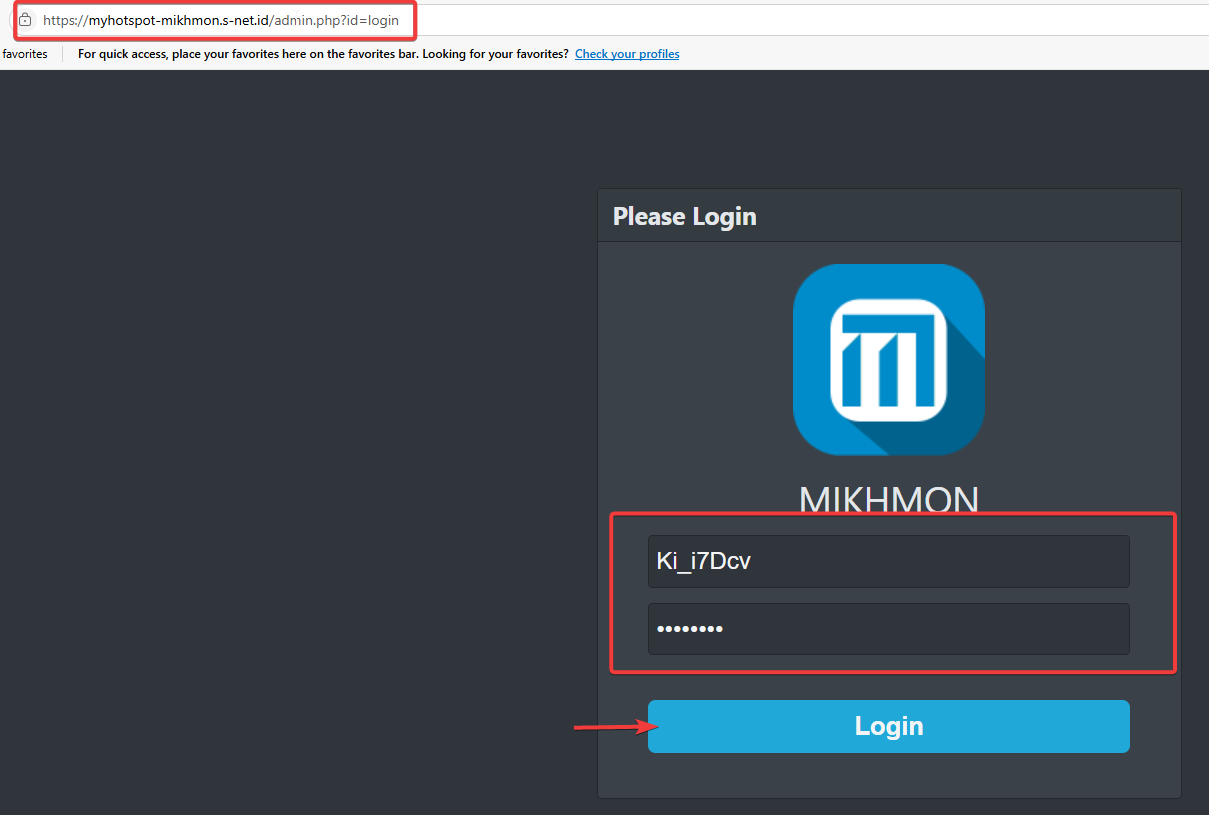
- Back to Overview tab, copy Mikhmon URL to open Mikhmon Online and use listed Username and Password Mikhmon to login to the Mikhmon Online.
- Open using browser then paste username and password then click Login.
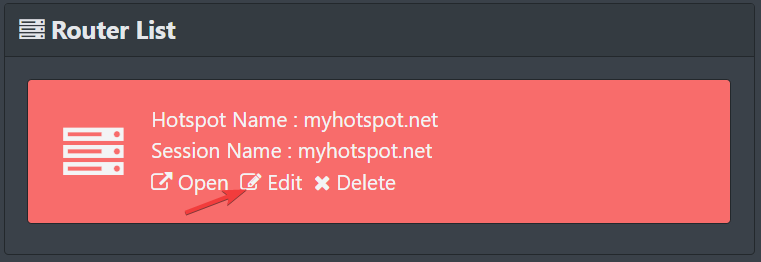
- In the Router List, click Edit
- Enter the username and password according to your MikroTik login. Edit Hotspot Name and DNS Name then click Save.
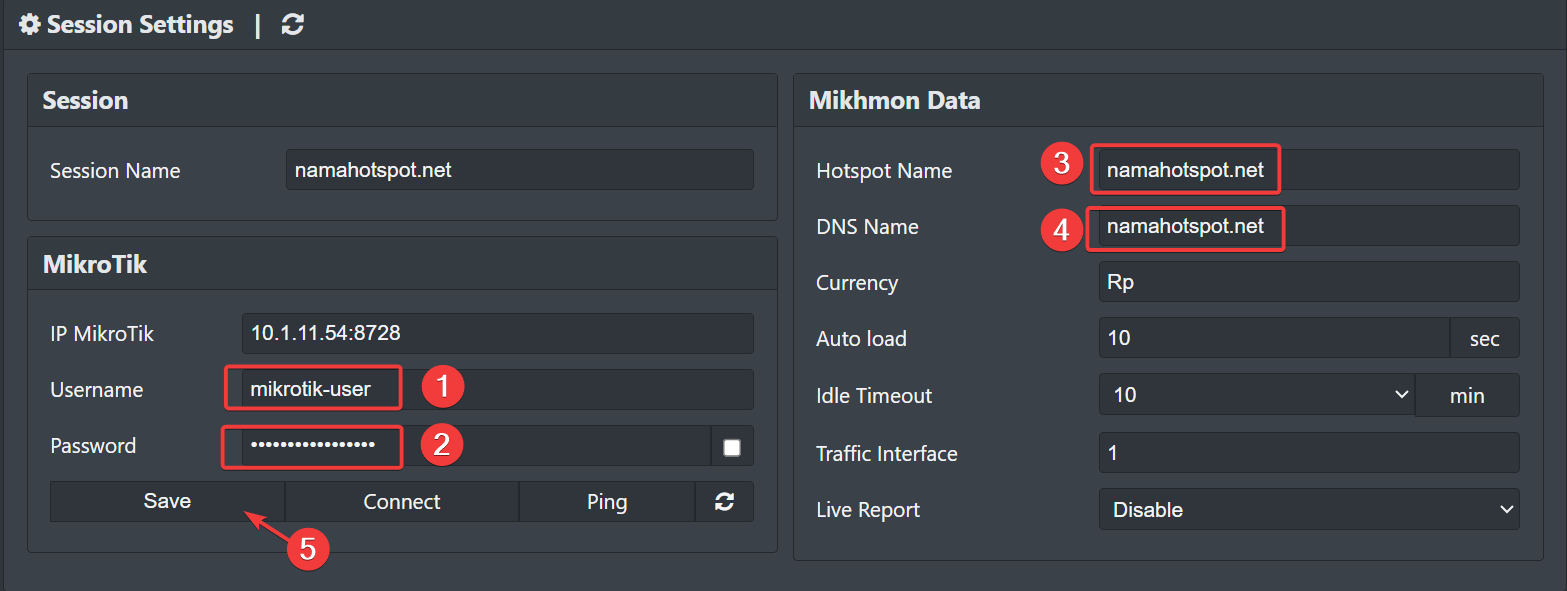
- Click Ping to test the connection.
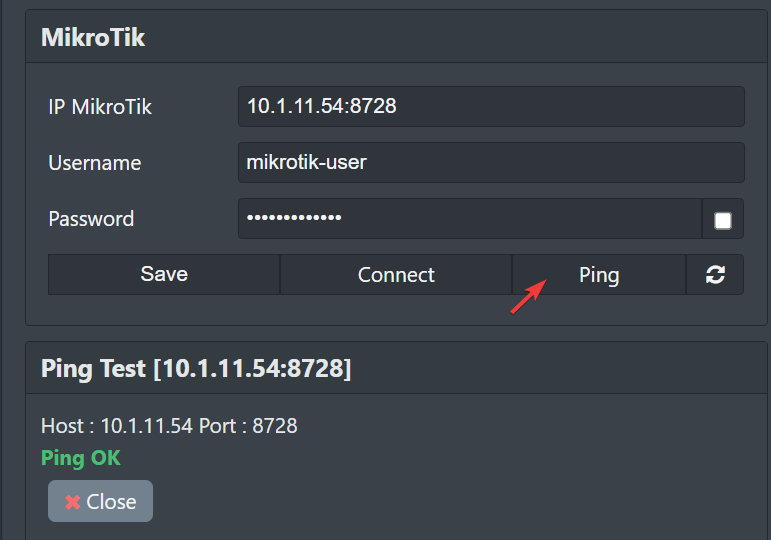
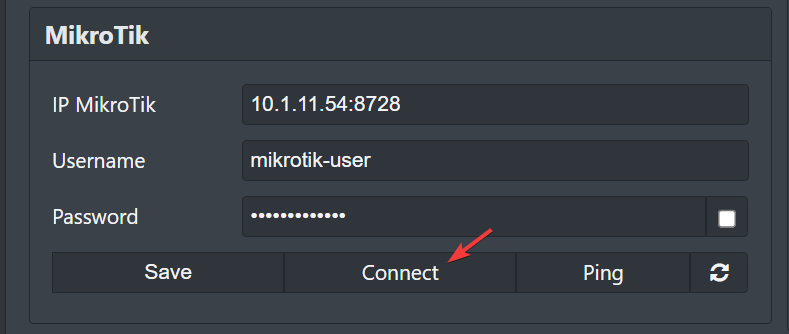
- Click Connect to connect Mikhmon Online to your Mikrotik.
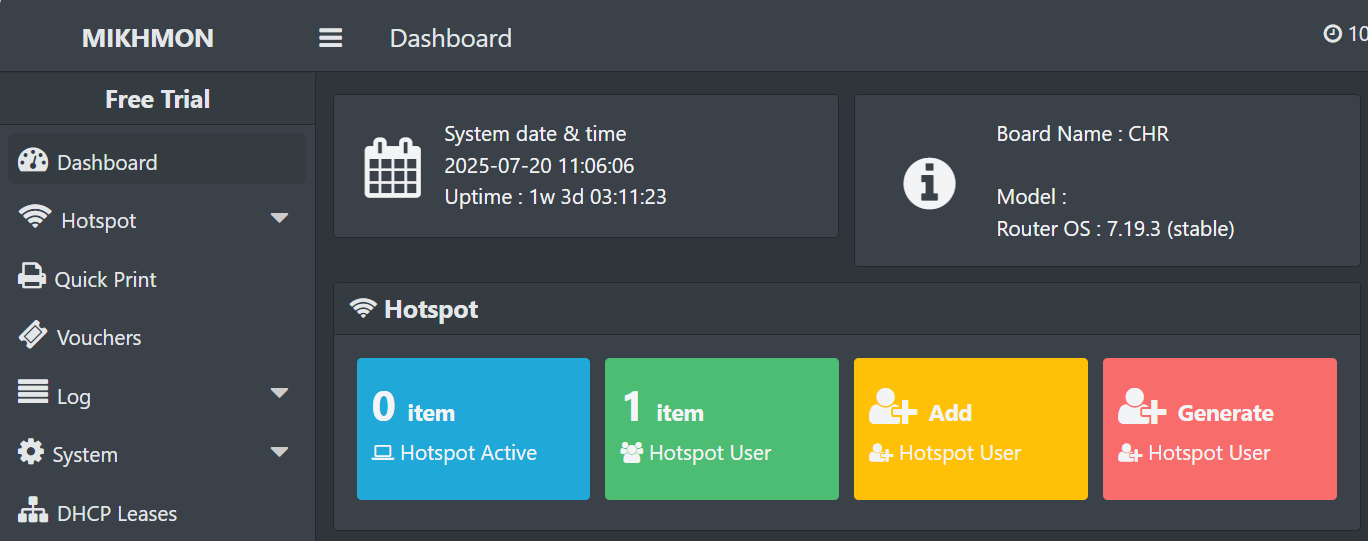
- Mikhmon Online successfully connected to your Mikrotik.
3. Accessing Winbox
- Back to the Overview tab, copy the Remote Winbox information to access your MikroTik router from the internet.
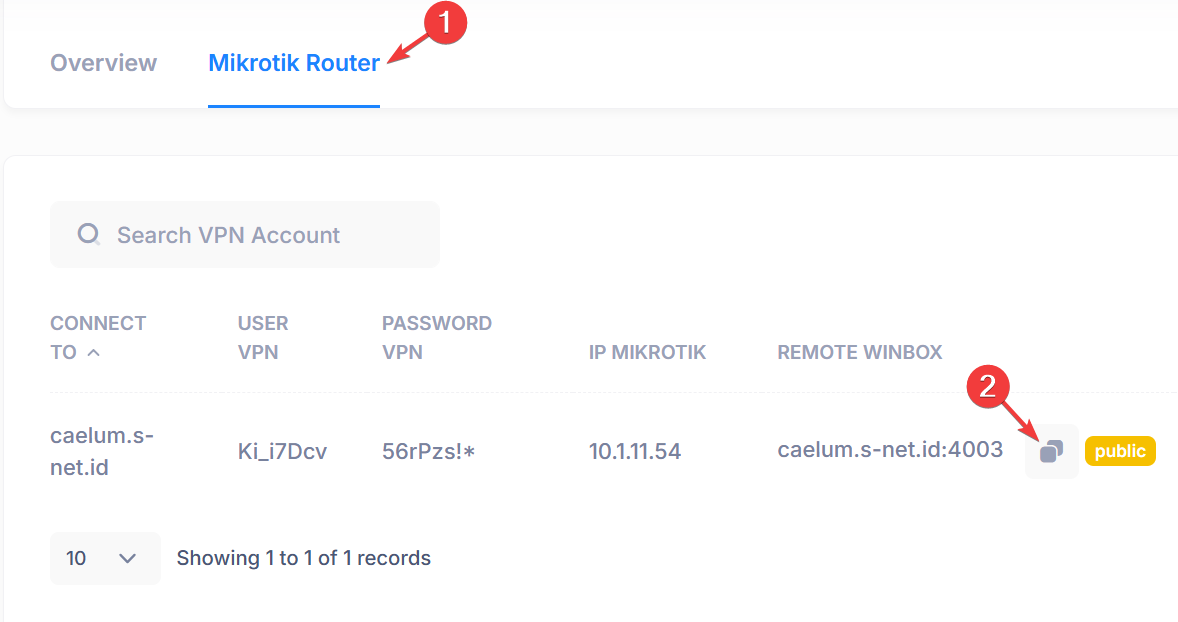
- Open Winbox, paste the port access information, then click Connect.